
These days, we spend more than half of our lives staring at a screen. Whether you’re a freelancer, a corporate employee, a software developer, or a content creator—your day starts and ends in front of that square box. And let’s be honest, a crappy monitor not only slows down your work speed, but also adds the added bonus of eye strain, neck pain, and extreme levels of annoyance.
- 1. Unboxing Experience: Is it crush at first sight?
- 2. Design and Aesthetics: The color white has a different allure!
- 3. Display and Color: This is where the magic of 4K (UHD) resolution lies!
- 4. Neck and back peace: Pro-level ergonomics
- 5. Is this a good choice for MacBook users?
- 6. Connectivity: The Type-C port is the real magic!
- 7. KVM Switch: The Father of Multi-Tasking!
- 8. Eye-Care: Get rid of blue-light and flickering
- 9. MSI Productivity Intelligence (PI) Software
- 10. Built-in speaker: How is the sound quality?
- 11. Should gamers get this monitor?
- 12. Who is this monitor the best choice for? (Target Audience)
- 13. MSI Modern MD272UPHW vs. other monitors
- 14. Pros & Cons at a Glance
- 15. What kind of desk setup will work with this monitor?
- 16. Frequently Asked Questions (FAQs)
- 17. Final Verdict: Should you buy this monitor?
Over the past few years, we’ve seen people spend a lot of money on their PC or laptop configuration, but when it comes to buying a monitor, they completely cut their budget. But what’s the point of having a high-end PC if the thing you’ll be looking at all day isn’t good?
There is no shortage of monitors for gamers in the market. There is only a scattering of RGB lights and aggressive designs all around. But for those who work professionally, who want their desk to look sleek and premium, and who don’t get tired of working for long hours—the options are quite limited. To fill this gap, MSI has brought their Modern MD272UPHW The model.
After thoroughly examining the specs, user experience, and features of this monitor over the past few days, I thought I’d write a mega-review for the readers of International Blogs. How much value does it really provide for the price? How does it perform against a MacBook? Let’s have a frank discussion without any reservations.
1. Unboxing Experience: Is it crush at first sight?
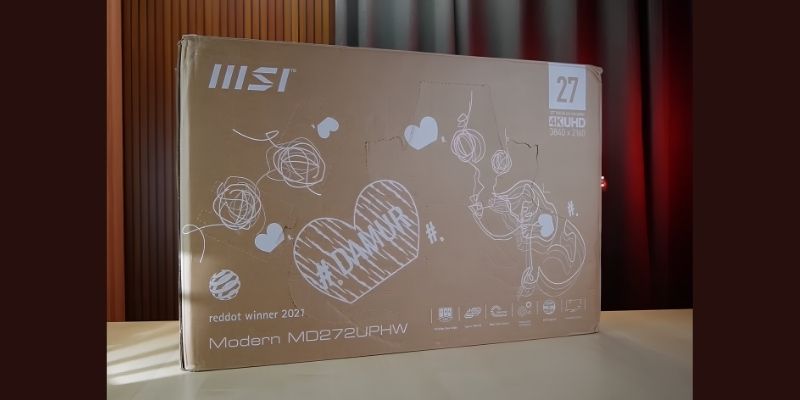
We all know that there is a special feeling when unboxing any gadget after buying it. The first thing that comes to mind after receiving the box of the MSI Modern MD272UPHW is that the packaging is quite eco-friendly. There is very little plastic used inside, which is a good thing for the environment.
When you open the box you will find:
- Monitor main panel or screen
- A heavy-duty stand in a bright white color
- A square or rectangular base
- Power cable (Power adapter built-in, so no need to keep a separate brick-like adapter on your desk)
- A high-quality HDMI cable
- Manual and warranty card
What I like most about it is the assembly process. You don’t need a screwdriver to attach the stand to the back of the panel. Just place it in the slot and hear a click sound, and that’s it! And there’s a thumb-screw for attaching the base, which can be tightened by hand. Your monitor setup is done in two minutes!
2. Design and Aesthetics: The color white has a different allure!
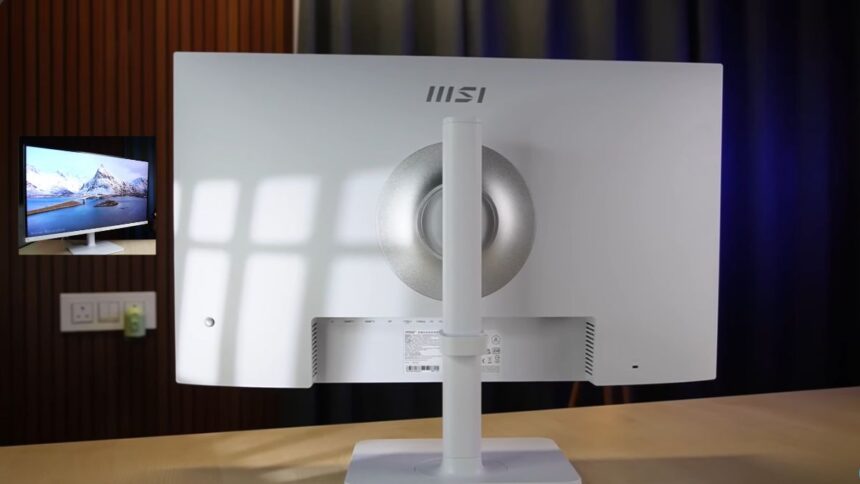
The ‘W’ at the end of the model name stands for White. Most of us have a black or gray monitor on our desk. A bright white monitor there changes the vibe of the entire setup.
This monitor falls into the category of minimalist or “clean” desk setups we see on Instagram or Pinterest.
Bezel-less design:
Its three-sided bezel (the border around the screen) is so thin that the gap in the middle is barely noticeable when you set up a multi-monitor setup. If you like to work with two monitors side by side, its thin bezel will give you a great viewing experience. Even though MSI uses a plastic body here, the material is quite premium. There is no point in reading fingerprints due to the matte finish.
Why is the stand design special?
Another cool thing is the base or stand at the bottom. It is not spread or V-shaped like other gaming monitors. It is completely flat and square. Do you know what its advantage is? You can easily save desk space by placing your phone, glasses, coffee mug, diary or any small gadget on it. For those who have less space on their desk, this flat base is a lifesaver design.
3. Display and Color: This is where the magic of 4K (UHD) resolution lies!
The main selling point of this monitor is its panel. MSI has used a 27-inch 4K UHD (3840 x 2160) IPS panel here.
Now the question may come to many people’s minds, is 4K really necessary on a 27-inch monitor? 2K (1440p) or 1080p is fine!
Bro, to be honest—once you see the text clarity of a 4K monitor with your own eyes, you’ll never want to go back to an older resolution. If you use 1080p resolution on a 27-inch monitor, the pixels are visible to the naked eye, and the text looks a little cracked. But in the case of 4K, the situation is completely opposite.
- Text Reading and Coding:
If you read a lot of articles, work with thousands of cells of data in Excel, or write code all day as a programmer, this monitor is a blessing for you. Its pixel density (163 PPI) is so high that the fonts look as sharp as the Retina Display of the MacBook. There is no strain on the eyes at all. - Color Accuracy:
Since it is an IPS panel, there is no room for complaint about the colors. It supports 95% sRGB, 106% sRGB (Area) and 10-bit (8-bit + FRC) color depth. This means that it can produce more than 1 billion colors. If you are doing basic or medium level graphics design, color grading or video editing, you can work without any tension of color washout. - Viewing Angle:
Since it is an IPS panel, its viewing angle is 178 degrees. This means that if you are not sitting perfectly straight in front of the monitor, but are slightly bent over, or are showing the screen to someone else, the screen color will not change at all.
4. Neck and back peace: Pro-level ergonomics
When buying a monitor, many of us only look at the screen and ignore the stand. When we start to get neck pain later, we know it’s a bummer! One of the main causes of neck or spine pain for those who work at a desk all day is that the monitor is not at the right height.
MSI has not skimped on this area. It includes a full ergonomic stand right out of the box. You can customize the monitor to your height or chair position:
- Height Adjustment: The screen can be adjusted up and down by up to 110 mm. You can set it according to your eye-level.
- Tilt: The screen can be tilted forward or backward from -5 degrees to 20 degrees.
- Swivel: The screen can be rotated 30 degrees left and right without moving the stand.
- Pivot – The Game Changer: My favorite feature! You can rotate the entire screen 90 degrees to portrait mode if you want.
Who will this pivot mode be useful for?
The portrait mode is very useful for those who edit TikTok, YouTube shorts, or reels. It is also used a lot by programmers to read long lines of code, and web developers to view entire webpages at once.
And if you want to set up a multi-monitor, placing the main monitor in landscape and this monitor in portrait mode next to it will create a very productive setup.
5. Is this a good choice for MacBook users?
For those who use Apple’s MacBook, buying a monitor can be a tricky task. Because the MacBook’s OS (macOS) has a lot of trouble with scaling when it comes to external monitors. If you connect a 1080p or 2K monitor to your MacBook, the text may look a little blurry or blurry.
There is no alternative to 4K resolution for the best experience with a MacBook. MSI Modern MD272UPHW is perfect for Mac users in this regard. The colors of this monitor match the colors of the Mac screen quite well. So if you are used to the Retina display of the MacBook, then shifting to this monitor will not cause any strain on your eyes.
6. Connectivity: The Type-C port is the real magic!
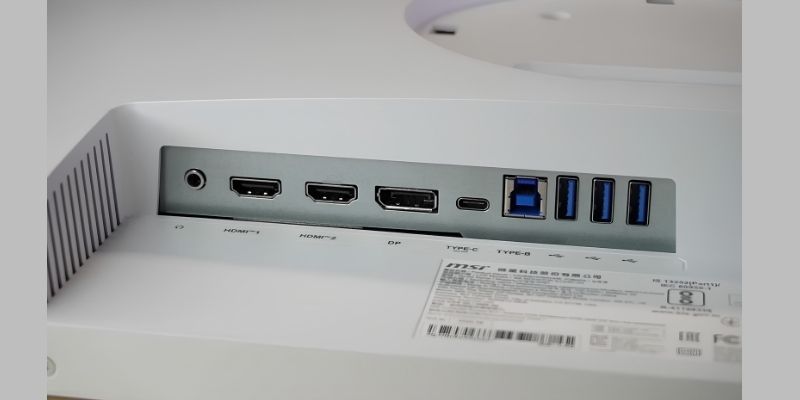
Looking at the ports on the back, you’ll realize that this is a truly “modern” and future-proof monitor. It has the normal HDMI 2.0b and DisplayPort 1.2a, but the real magic is its USB Type-C Port.
Let’s say you have a laptop. While working at your desk, you need a large charger to charge the laptop, and an HDMI cable to connect it to the monitor. The desk is completely cluttered with cables, right?
But with the Type-C port on this monitor, you can kill two birds with one stone. Connect your laptop and monitor with just one Type-C cable. That single cable will send high-quality display signals from your laptop to your monitor, and at the same time, your laptop will be charged at full speed by receiving 65W Power Delivery from the monitor!
Just think, no need for a separate charger. The desk will be very clean and minimal. When you go out, you can just unplug one cable and put it in your laptop bag.
7. KVM Switch: The Father of Multi-Tasking!
For those who have both a laptop and a PC on their desk, the KVM (Keyboard, Video, Mouse) switch is a headache-inducing feature.
How does it work?
Suppose you have both your desktop PC and the laptop provided by the office connected to the monitor. Normally, you would need two keyboards and mice for both devices. But if you have a KVM switch, you can plug your favorite keyboard and mouse directly into the USB ports on the back of the monitor.
Then, when you use the PC, the keyboard-mouse will work with the PC. When you switch to the laptop, the same keyboard-mouse will connect to the laptop with just one click! No more hassle of unplugging and plugging it in again. What could be a better feature to boost productivity?
8. Eye-Care: Get rid of blue-light and flickering
Many of us have the habit of working at night. But many of us do not care about the damage that the blue light of the monitor and the flickering of the screen are doing to our eyes. A bad monitor is the main reason for burning eyes, watery eyes, headaches, or not being able to sleep at night.
MSI has used several advanced eye-care technologies certified by TÜV Rheinland in this monitor.
1. Less Blue Light PRO:
When you turn on the “Night Light” or blue-light filter on a normal monitor or in Windows, the screen turns yellow or orange, right? It’s very annoying for graphic designers, because then the real colors can’t be seen. But this MD272UPHW model has hardware-level “Less Blue Light PRO” technology. This means that harmful blue light to the eyes will be filtered, but the color or white of the screen will not turn yellow at all! The colors will be completely natural.
- Anti-Flicker Technology:
Although it is not noticeable to our naked eyes, the screen of a typical monitor flickers thousands of times per second. This can tire the eye muscles very quickly. MSI’s anti-flicker panel keeps the screen perfectly still. As a result, even if you look at it for 8-10 hours straight, you will not feel any pressure on your eyes. - Anti-Glare (Matte Finish):
If the sun from the window or the tube lights in the room reflect on the monitor screen, it becomes very difficult to work. Due to the anti-glare coating of this monitor, there is no mirror-like reflection on it.
9. MSI Productivity Intelligence (PI) Software
Along with the hardware, MSI’s software support is also great. Changing the brightness or color by pressing small buttons on the bottom of the monitor is quite a boring task.
If you install MSI’s “Productivity Intelligence (PI)” app on your PC, you can change the monitor’s brightness, contrast, eye-saver mode, or gaming mode directly with your mouse. This app is also great for configuring KVM switches. However, keep in mind that to use this app, you must have a USB data cable connected from the monitor to your laptop or PC.
10. Built-in speaker: How is the sound quality?
Let me give you a real review without any gimmicks, don’t expect DJ party sound from the monitor’s built-in speakers. It has two 3-watt speakers.
This sound is more than enough for watching regular YouTube videos, listening to music at a low volume in the background, listening to podcasts, or having a Zoom meeting with a client. Vocals are very clear. But if you’re watching a fast-paced action movie on Netflix or listening to bass-heavy songs at full volume, the speaker’s sound may seem flat to you.
For a better audio experience, it would be wise to use a good pair of headphones or external speakers. There is also a 3.5mm headphone jack on the back of the monitor.
11. Should gamers get this monitor?
The simple answer is no. If you’re a hardcore e-sports gamer, playing Valorant, CS:GO, or Call of Duty all day, this monitor isn’t for you. It has a refresh rate of 60Hz and a response time of 4ms.
To play competitive games, you will need a monitor with a refresh rate of 144Hz, 165Hz, or higher, so that the gameplay is as smooth as butter.
But yes, if you’re like me who occasionally plays story mode games (e.g. GTA 5, Cyberpunk 2077, Assassin’s Creed) on weekends to chill out after work, you’ll be amazed by the graphics and details in the games due to the 4K resolution. It’s primarily designed for productivity and office work, not gaming.
12. Who is this monitor the best choice for? (Target Audience)
If you are still confused about whether it would be logical for you to buy this monitor for so much money, you can compare the following points:
- Remote workers and freelancers:
This is the best choice for those who work from home. The Type-C port, KVM switch, and eye-care features will make your daily work much more comfortable. - Content Creator and Graphic Designer:
Working in Photoshop, Illustrator, or Premiere Pro will be much more accurate due to the 4K resolution and perfect color accuracy. - Programmer and Data Analyst:
The ability to rotate the screen 90 degrees to work in portrait mode to write code is a favorite among programmers, and 4K resolution gives you more screen real-estate when working with large amounts of data in Excel. - MacBook Users:
It’s a great budget-friendly 4K monitor for use with a MacBook. The 65-watt charging makes life easier for Mac users.
13. MSI Modern MD272UPHW vs. other monitors
There are also some 4K monitors on the market from LG, Dell, or ASUS. So why is MSI different?
First, its design. There are very few premium-looking productivity monitors in white at this budget. Dell’s UltraSharp series of monitors are good, but their prices are sky-high. On the other hand, many of LG’s monitors don’t have a Type-C port or a full ergonomic stand (on standard models).
From that perspective, the combination of design, 4K display, ergonomics, and Type-C KVM switch that MSI has given to this model is, in a word, brilliant.
14. Pros & Cons at a Glance
Before buying any gadget, let’s take a look at the pros and cons to make a quick decision. As an honest reviewer, I’m highlighting both sides:
What I liked (Pros):
- 4K (UHD) IPS panel with unwavering sharpness, colors are absolutely perfect.
- Clean and minimalist design in white, which changes the look of the setup.
- Fully adjustable stand (up-down, left-right, vertical).
- 65-watt Type-C port—best for laptop charging plus display.
- Hardware-level blue-light filter and anti-flicker while preserving original colors.
- Features that work like a KVM switch for multi-device users.
Things that could be improved (Cons):
- Refresh rate is 60Hz. Even for productivity monitors, many people expect 75Hz or 90Hz these days.
- HDR performance is nothing special. It supports basic HDR.
- The speaker’s sound quality is quite flat, just okay for basic tasks.
- Because it is white in color, you have to use it with caution, otherwise it will be easily noticeable if it gets dirty.
15. What kind of desk setup will work with this monitor?
Since you’re buying a premium white monitor, your desk setup should also match. A beautiful setup doubles your work motivation.
- Desktop Mat: Instead of buying a black or dark colored mat, you can use a light gray or white colored leather or felt mat.
- Keyboard and mouse: Using a white or silver mechanical keyboard (such as Logitech’s MX Keys Mini or the white model from Keychron) and a white mouse (such as the Logitech MX Master 3S White) will give the whole setup an Apple-like premium vibe.
- Lights: You can put a warm or light yellow LED strip light behind the monitor. And a nice screenbar or monitor light on the desk will make working at night much more comfortable.
16. Frequently Asked Questions (FAQs)
Before buying any product, buyers have many questions in their minds. Let’s find out the answers to some common questions:
- Does this monitor support VESA mount (wall or monitor arm mounting system)?
Answer: Yes, bro! It has standard 75 x 75 mm VESA mounting support. If you want, you can remove the stand from the box and mount the monitor on the wall with a third-party monitor arm or bracket. This will save more desk space. - Is 60Hz at 4K resolution bad for the eyes?
Answer: Not at all. Gaming requires a higher refresh rate to understand fast movement. But if you’re reading text, coding, or editing video, 60Hz is perfectly smooth and standard. - My laptop has a Type-C port, but will it output display?
Answer: This is a very important question. If your laptop’s Type-C port supports “DisplayPort Alternate Mode (DP Alt Mode)” or “Thunderbolt 3/4”, then you will get the benefit of display output and charging through the cable. If the Type-C port only supports charging or data transfer, the display will not work. It is better to check the laptop’s manual before buying. - Do white monitors turn yellow after a few days?
Answer: MSI has used high-quality plastic here, so there’s no chance of it turning yellow easily unless you leave it in the sun. However, it’s best to wipe it lightly with a microfiber cloth once a week to keep it from getting dusty on a regular basis.
17. Final Verdict: Should you buy this monitor?
The MSI Modern MD272UPHW monitor isn’t really for everyone. It’s made for those who like the aesthetic look of their gadgets, who want to create a cable-free, clean setup with a MacBook or laptop, and for whom text and color clarity matter a lot in their work.
If you are a professional who spends most of the day staring at a screen and is concerned about your eye and neck health, this monitor is a great investment. Considering the price, this package of 4K display, Type-C charging, KVM switch, and ergonomic stand will provide you with more value than any other brand in the market.
Eye comfort, back comfort, and work speed—all combined, this is one of the best options in this budget. Just keep in mind that it’s not a good idea to buy this for hardcore gaming. In terms of productivity, MSI has done a great job here, earning full marks.
(Hopefully this detailed review will help you in your decision-making. If you want to know what features you are looking for in a monitor for your work or setup, you can tell us in the comments section. We will try to give you the right guidelines! Stay tuned to our blog to stay updated in this world of technology. Thank you!)